Assume It Dies on Sunday Night: The 30-Minute Laptop Failover Test Worth Doing This Week

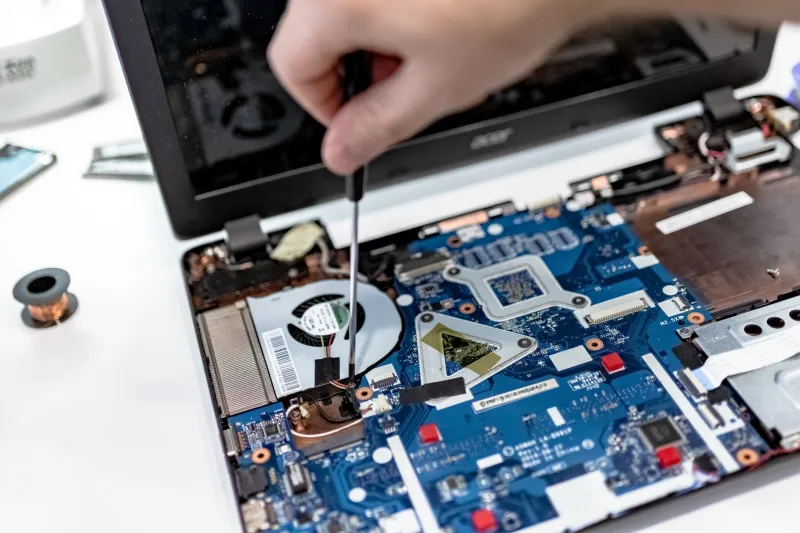
Photo: U.S. Army photo by 2nd Lt. Gabriel Jenko, 1st Battalion, 82nd Field Artillery Regiment, 1st Armored Brigade Combat Team, 1st Cav. Div., Public domain, via Wikimedia Commons
There's a particular kind of panic that only happens at about 11:20pm, when a laptop decides it has had enough and the essay, invoice or pitch deck lives inside it. We've seen it plenty of times over the counter, and it almost always follows the same script: no finished backup, no recovery key, a charger that turns out to be the wrong wattage, and no idea where the nearest repair shop is or how long they'll take.
That's not bad luck. It's an untested plan. So here's the fix — a short rehearsal you run on a quiet evening when nothing is at stake, so that the real failure is merely annoying rather than catastrophic.
Why rehearse something that hasn't happened?
Because the moment something breaks is the worst possible time to learn your setup. Adrenaline makes bad decisions, and repair shops close at 5:30pm. A dry run takes about half an hour, costs nothing, and turns a crisis into a checklist you've already ticked once.
Think of it as a fire drill for your deadline. Nobody enjoys them, everyone's glad they happened.
Step one: pull the plug and see what's actually backed up
Start by opening the folder you'd need most if the machine vanished tonight. Not the whole drive — just the work you'd genuinely grieve over.
- Is it in the cloud, or only on the laptop? If it's in OneDrive, Google Drive or iCloud and you've seen it sync recently, you're in decent shape.
- Is it in an offline copy? A USB stick, an external drive, a spare SD card — anything that isn't the machine itself and isn't relying on the same internet connection.
- Could you open that copy on a different device? This is the bit people skip. A backup you can't actually read is a filing cabinet with no key.
The old rule of thumb — three copies, two formats, one off-site — sounds grand but scales down fine. A working document, a cloud copy and a cheap external drive at a relative's house is not overkill for a dissertation.
If your backup is a drive you last plugged in during the last Olympics, today's the day.
Step two: find your recovery key before you need it
A dead laptop is inconvenient. A locked, encrypted laptop you can't unlock is a small funeral. Windows 11 device encryption and BitLocker will ask for a recovery key at exactly the worst moment, and Apple's FileVault does the same thing in its own way.
Check now, while the machine still boots:
- Sign into your Microsoft account on a phone or tablet and look under Devices → your laptop → BitLocker keys. Apple users, check iCloud for your FileVault key.
- Print it, or write it on paper and put it somewhere that isn't inside the laptop bag. A key stored only on the machine that needs unlocking is a punchline.
- Then think about two-factor authentication. If your authenticator app lives on the phone that also holds your codes and your email password, and your laptop is the only device you trust — you've built a single point of failure. Add a backup method.
This is the step most people skip, and it's the one that turns a repair into a data-recovery bill.
Step three: the charger audit
Dig out every charger in the house and check three things:
- The connector. USB-C is now the common language, but plenty of working laptops still want a barrel plug, and a 65W brick with the wrong tip is a paperweight.
- The wattage. A 45W phone charger will trickle a laptop along and may not keep up with a video call. Look for the number on the brick, not the cable.
- Whether it actually works. Plug it in. Wiggle it. Cables fail at the strain relief, right where the plug meets the moulding, and a charger that only works when propped at an angle is already gone.
If you commute with one charger between home and the office, buy a second one. Genuine or reputable-brand replacements start around £25 and are far cheaper than a lost working day.
Step four: know your repair options before you're desperate
Spend ten minutes now on the map, not after the crash.
- Find two independent repair shops within reach — not just the nearest big-name branch. Look for reviews mentioning your model and reasonable turnaround times, and note their Saturday hours.
- Check your warranty and any accidental damage cover. For home workers and small offices, a single policy document buried in a drawer is worth finding now.
- Ask about lead times, because the answer changes everything. A screen swap is often same-day or next-day at an independent; a motherboard repair may be a fortnight.
- Students: your university or college library almost certainly has a laptop loan scheme, and many run a support desk. Find out where it is before you need it. Local libraries also lend machines and offer free computer access, which covers the 'submit the thing' emergency.
Step five: the loaner plan
This is the part people laugh off, then wish they hadn't. Decide in advance who you'd borrow from, or what you'd rent. A neighbour's spare, a work machine, a £60 refurbished standby from a local shop — any of these beats paying for same-day delivery on a panic purchase.
Small teams should go further: keep one configured spare laptop and a note of who holds it. It's dull admin that pays for itself the first time someone's machine dies mid-project.
The two-line card taped inside the lid
When the drill is done, write four things on a bit of card and tape it inside the laptop bag or on the underside of the lid:
- Where the backup lives
- Where the recovery key is kept
- Two repair places, with phone numbers
- Who to call for a loaner
That's it. Thirty minutes, one evening, and the worst day becomes a slightly irritating one. Given how much of our working and studying lives sit on a single hinge, that seems a fair trade.
If your machine is already making the noises that precede this article, our repairs section has guidance on getting a fair quote — but honestly, do the drill first. It's cheaper.