Retire It Right: Selling, Donating or Recycling Your Old Laptop Without a Data Hangover
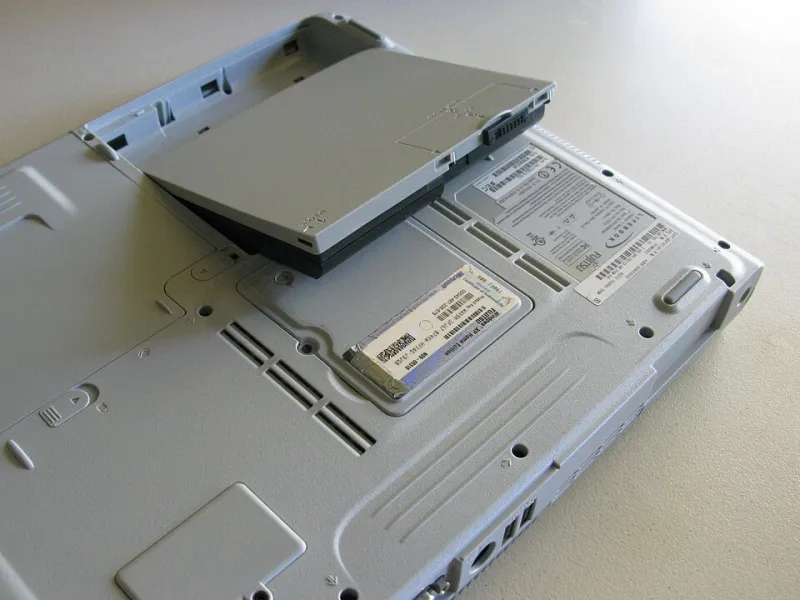
Photo: Intel Free Press, CC BY-SA 2.0, via Wikimedia Commons
Most of us have one: a retired laptop sitting in a drawer, under a bed or on a shelf in the spare room. It is too slow for daily use, too useful to bin and too full of personal stuff to hand over without thinking. The good news is that a retired laptop is not rubbish. It is a small asset with a memory problem. Deal with the memory properly and you can sell it, trade it in, donate it or recycle it with a clear conscience.
At Just4Laptops, we see plenty of people make the same mistake: they delete a few files, empty the recycle bin and assume the job is done. It is not. A retired laptop needs a proper send-off. Here is the practical UK route map.
First, back up and sign out — before you touch the reset button
Before any wipe, copy anything you want to keep onto an external drive or a cloud account you control. Photos, documents, tax records, that folder of scanned receipts you keep meaning to sort — get them off first. Check browser bookmarks and password managers too.
Then sign out of the accounts that tie the machine to you. On Windows, that means your Microsoft account, OneDrive, Teams and any work logins. On a Mac, sign out of iCloud and the App Store. Remove the device from Find My Device or Find My Mac if you use those services. If the laptop has a SIM card or SD card, take it out.
If it is a work laptop, stop right there. Return it to your employer’s IT team rather than selling or donating it. For small businesses, a retired staff laptop can contain client data, so a casual handover is a GDPR problem waiting to happen. Wipe it, log the disposal and keep a record.
The wipe: factory reset is good, secure erase is better
For most modern Windows 10 and 11 laptops, the built-in reset is a sensible starting point. Go to Settings, then System, then Recovery, then Reset this PC. Choose Remove everything. If you are asked whether to clean the drive, say yes — but understand that on a solid-state drive this is not a magic eraser. It is a useful extra step, not a military-grade guarantee.
If the laptop supports it, turn on device encryption or BitLocker before the reset. Once the drive is encrypted and the recovery key is removed, the old data is effectively locked away. For a belt-and-braces approach, use the drive maker’s secure erase tool — Samsung Magician, Crucial Storage Executive and similar utilities — or the secure erase option in the laptop’s BIOS if it has one.
On a Mac, use Disk Utility to erase the drive and reinstall macOS. On an older laptop with a mechanical hard drive, a full overwrite tool is more effective than on an SSD. If the machine will not boot at all, the safest option is to remove the drive and keep it, or have it physically destroyed. A replacement SSD is cheap; your bank details are not.
Selling: eBay, Facebook Marketplace or a local buyer?
eBay gives you the widest audience and a paper trail. A clean, working business-class laptop with a decent battery can still fetch £80 to £250 in late 2026, depending on spec, condition and charger. Factor in seller fees, postage and the risk of a return. Use Buy It Now if you want a predictable price, or an auction if you are happy to let the market decide. Photograph the screen with it switched on, list the specs honestly and mention any scratches.
Facebook Marketplace is faster and fee-free, but it is a different sport. You will get messages asking if it is still available before they have read the listing. Meet in a safe public place, accept cash or bank transfer cleared before handover, and do not post the laptop to a stranger who promises to pay later. Gumtree and local selling groups work in a similar way.
In every listing, say that the drive has been wiped and the laptop has been reset. Keep the charger with it. A missing charger knocks value off immediately and makes the buyer wonder what else is missing.
Trade-in and buy-back: convenient, but check the quote twice
Retailer trade-in schemes, manufacturer buy-back offers and high-street chains such as CeX can take the hassle out of selling. You usually get less than a private sale — think £40 to £120 in credit for a three- or four-year-old laptop — but you avoid strangers, haggling and postage. Trade-in is particularly useful for damaged machines or models with weak resale demand.
Read the condition rules before you send anything. A quote can drop after inspection, and some schemes exclude laptops with cracked screens, missing keys or faulty batteries. Wipe the drive yourself even if the scheme says it will handle data. You would not post a letter without checking the address, so do not post a laptop without checking the wipe.
Donating: goodwill needs a data checklist too
Charity shops, community groups, schools and refurbishment charities may accept working laptops, especially with a charger. Phone ahead. Many high-street charity shops cannot test electronics, so they may decline. A local refugee support group, a small charity or a school might be delighted.
Ask whether they can claim Gift Aid on the donation. It is not automatic for every item, but it is worth asking. Before donating, do the same backup, sign-out and wipe routine. Do not donate a laptop with your account details still attached, and do not assume the charity has the time or tools to clean it for you.
Council recycling: the free last resort
If the laptop is dead, badly damaged or simply not worth selling, take it to your local household waste recycling centre. Council sites accept waste electrical and electronic equipment — WEEE — and laptops are included. Do not put a laptop in the general bin. Batteries can cause fires in collection vehicles and waste plants.
If you are worried about data and the machine will not boot, remove the drive before recycling where possible. Ask staff where the WEEE container is and whether they can take the laptop complete. Keep a note of the date and site if you need a disposal record for a small business.
The quick decision tree
Working, worth more than £100 and you have time: sell privately. Working, worth £40 to £100 and you want an easy life: trade in. Working but old and you want goodwill: donate to a cause that can use it. Dead or damaged: recycle through your council. Contains client or company data: return it to IT or wipe it professionally.
The last step is the one people skip: the wipe. Do that properly and the rest is just choosing the route that pays you back in cash, credit or community goodwill. Your old laptop has done its time. Send it on without sending your life with it.